ProTV Streams Downloads & Setup
SET UP ON
GOOGLE TV.
Google TV, onn, Chromecast & Android TV boxes · 27 easy steps · about 10 minutes
YOU NEEDYour TV remote and Wi-Fi
THE CODE5181788
YOUR LOGINUsername & password from your welcome message
  1. Step 1: Open Settings
    01

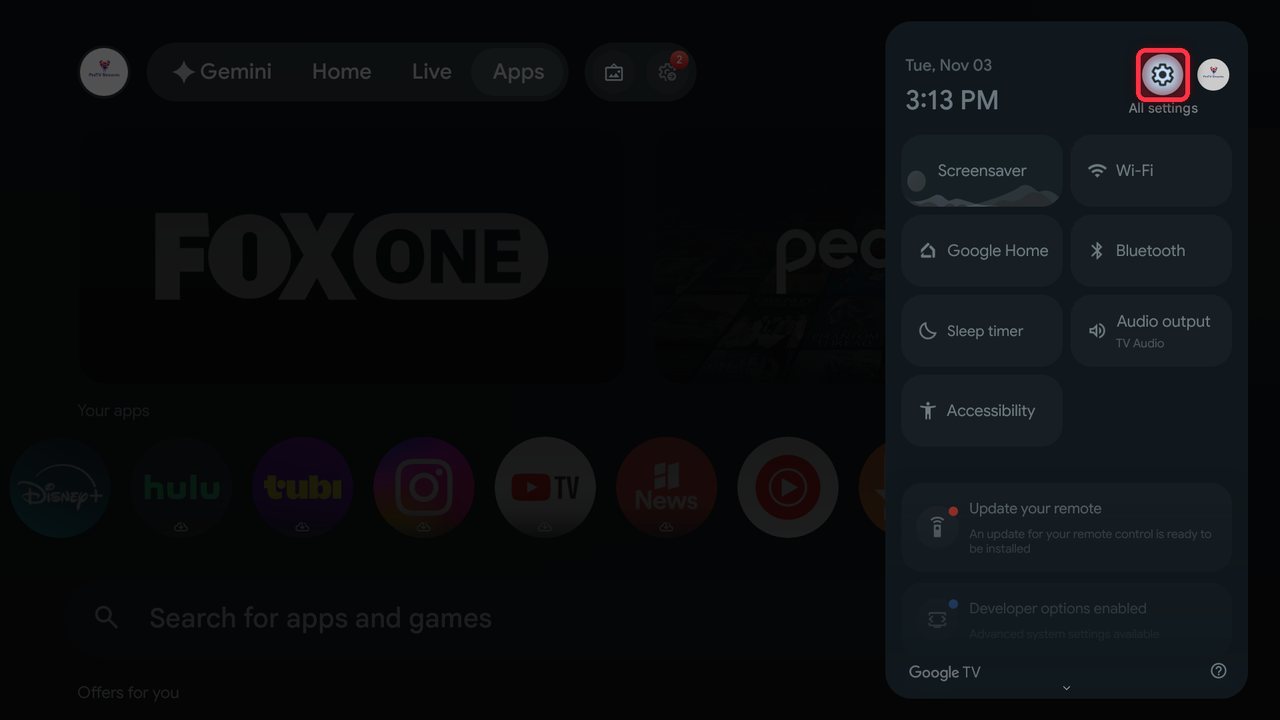
    Open Settings

    Press Home, go to the ⚙ gear at the top right and select All settings.
  2. Step 2: Open System
    02

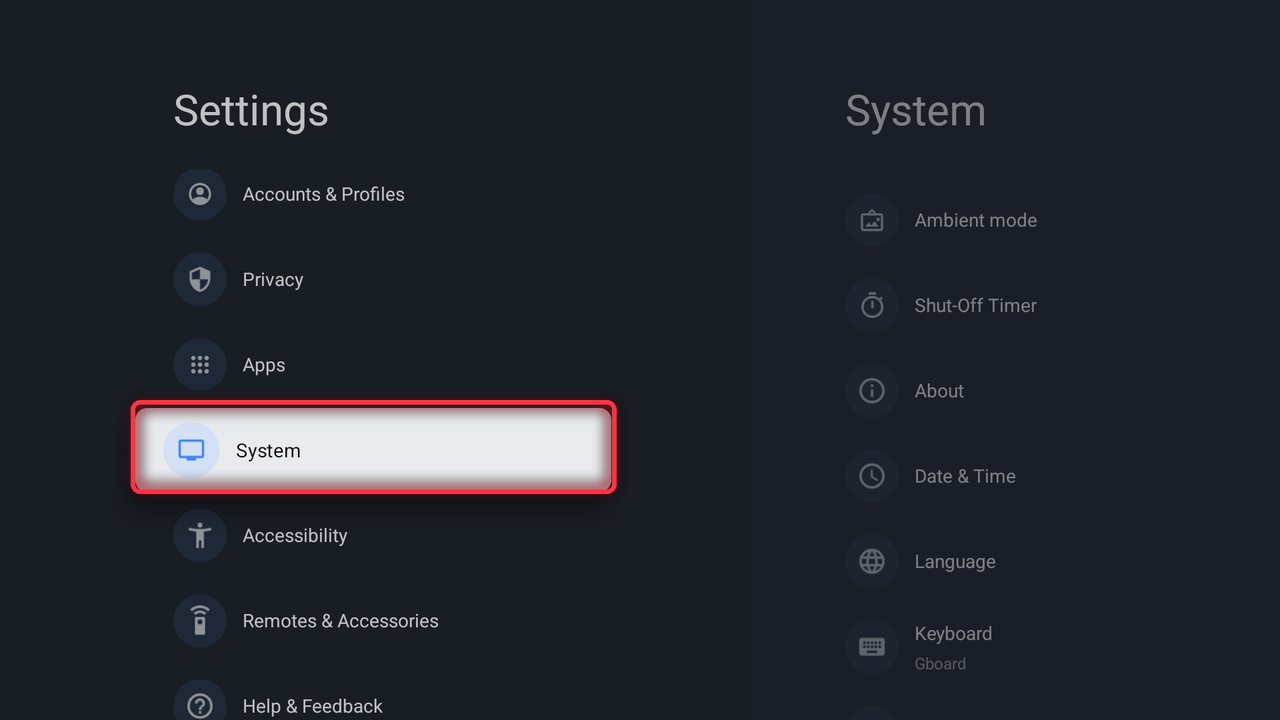
    Open System

    Select System.

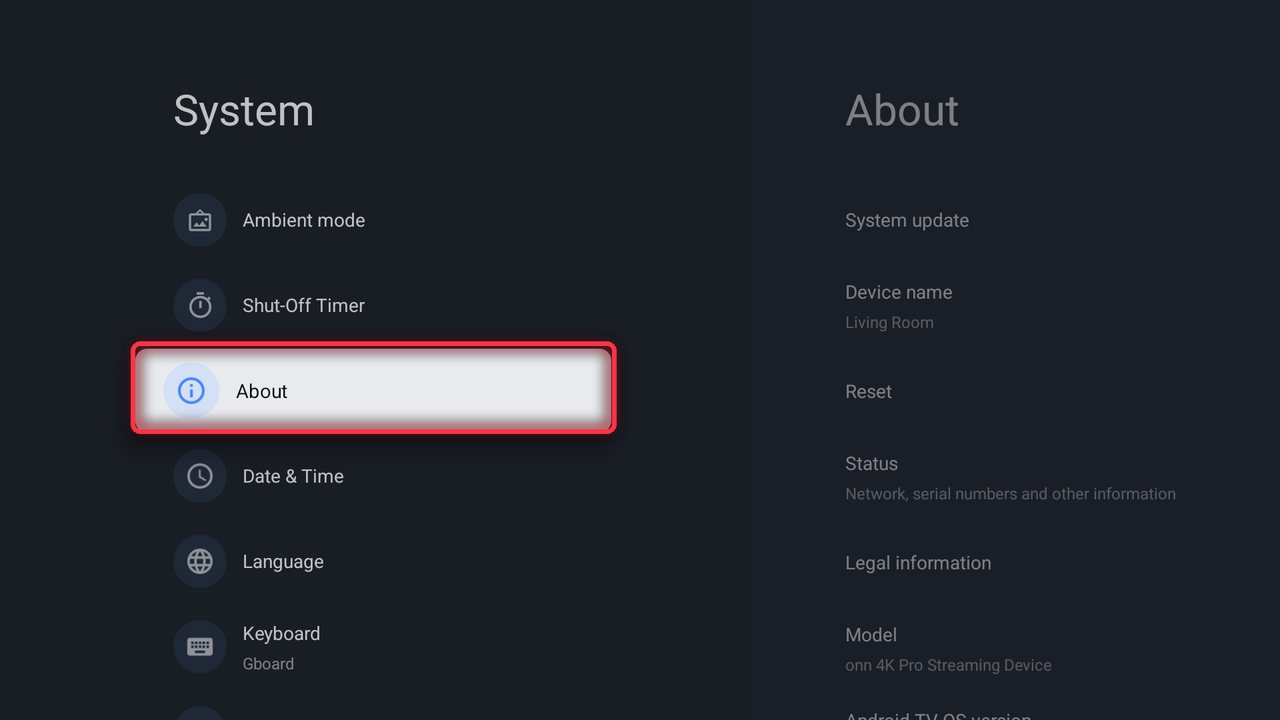
  3. Step 3: Open About
    03

    Open About

    Select About.

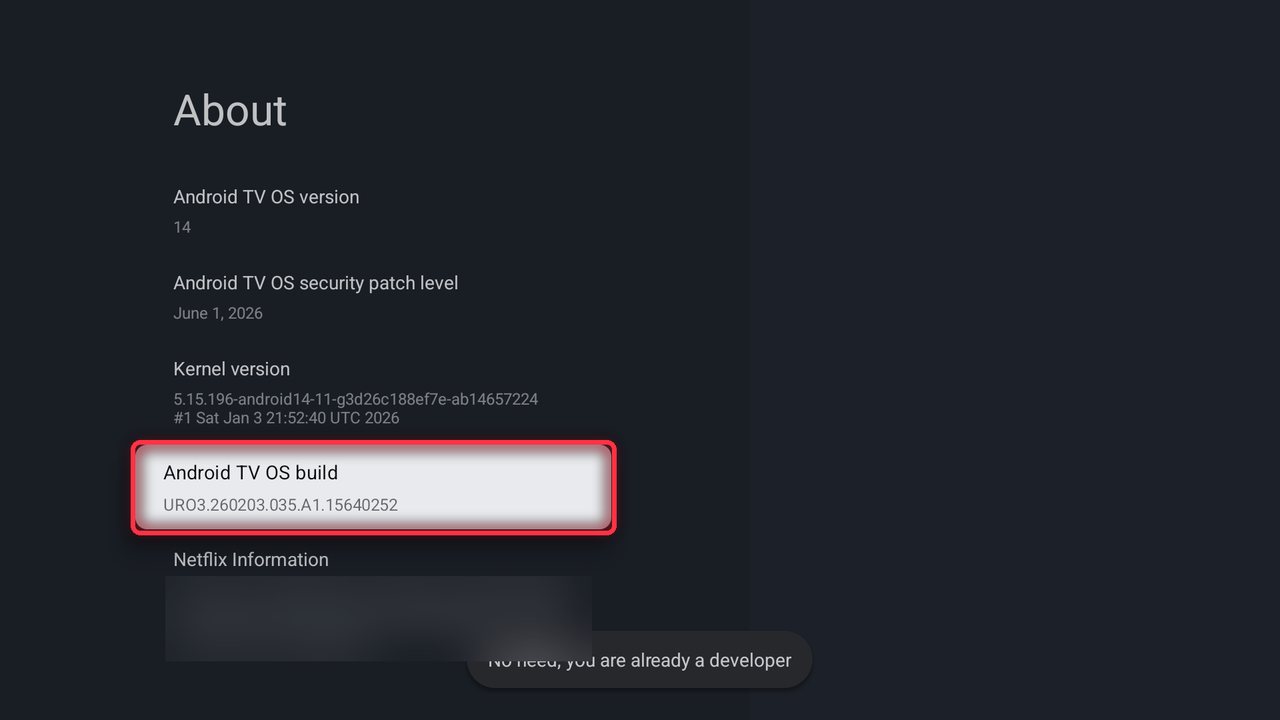
  4. Step 4: Turn on Developer options
    04

    Turn on Developer options

    Scroll down to Android TV OS build and press OK 7 times, until it says "You are now a developer". "Already a developer" means you're set.
  5. Step 5: Search for Downloader
    05

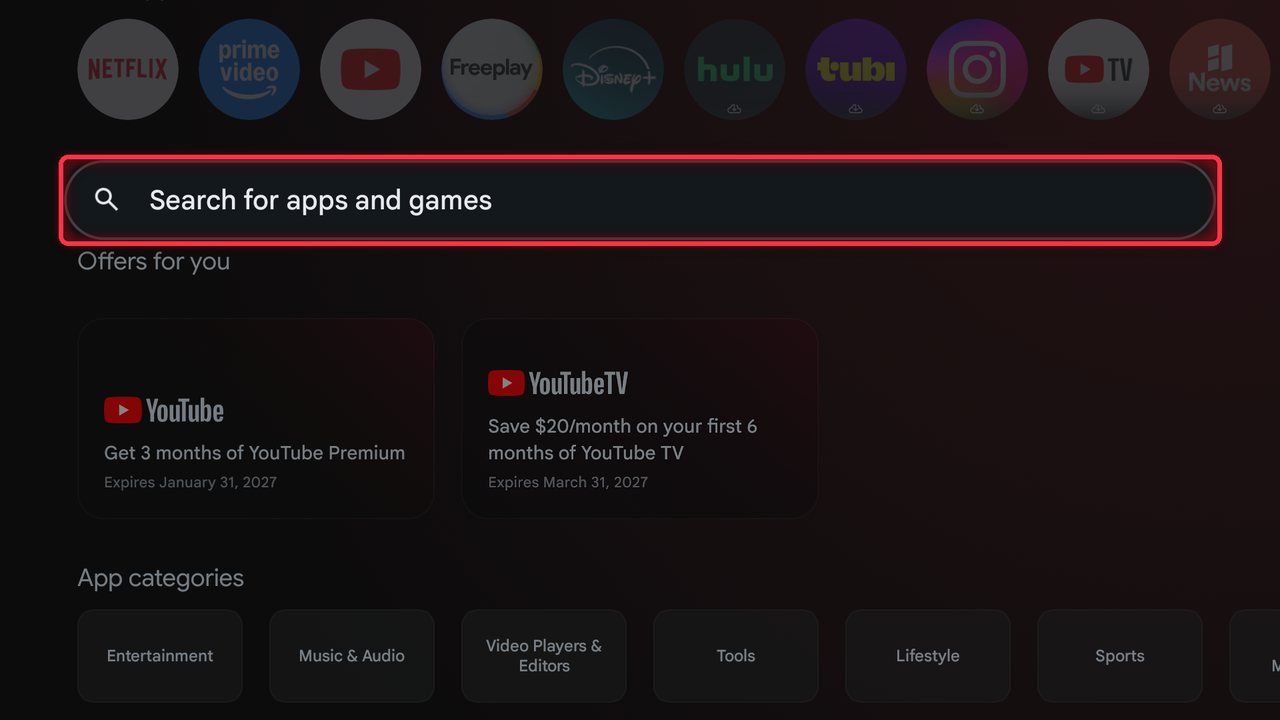
    Search for Downloader

    Press Home, go to Apps at the top, select Search for apps and games and type downloader.
  6. Step 6: Pick "Downloader by AFTVnews"
    06

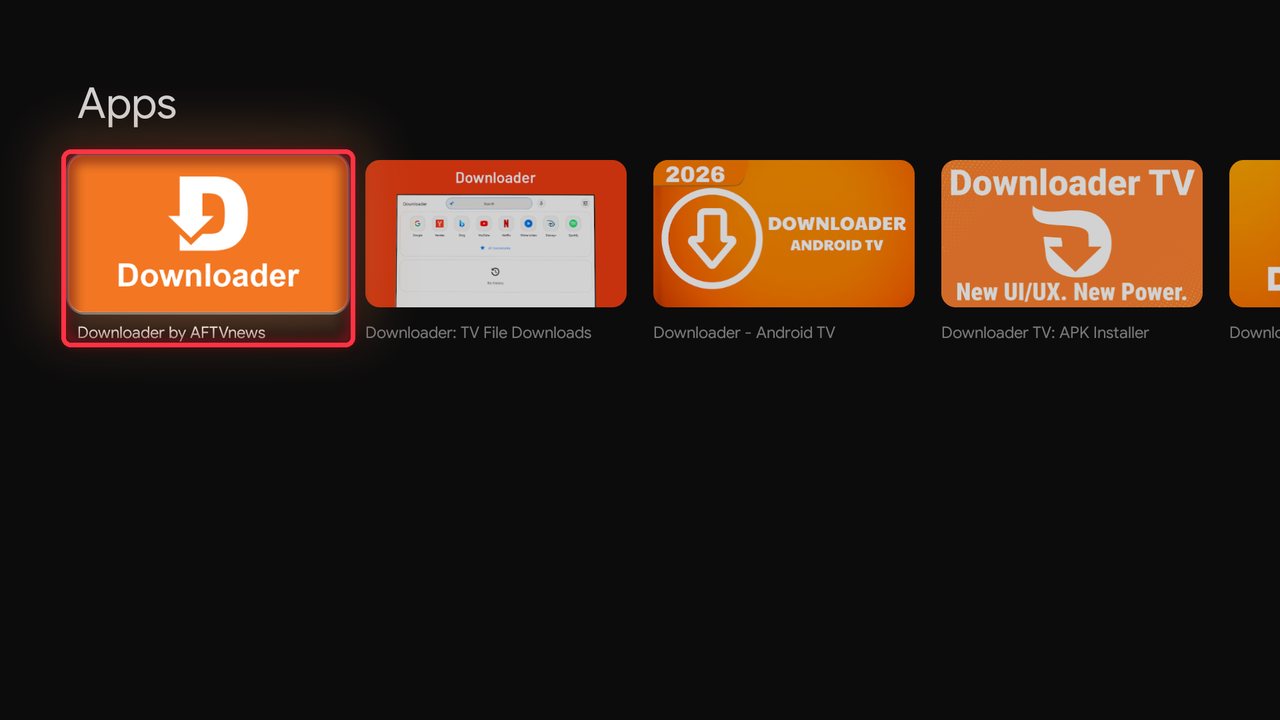
    Pick "Downloader by AFTVnews"

    Select Downloader by AFTVnews (there are look-alikes).
  7. Step 7: Install it
    07

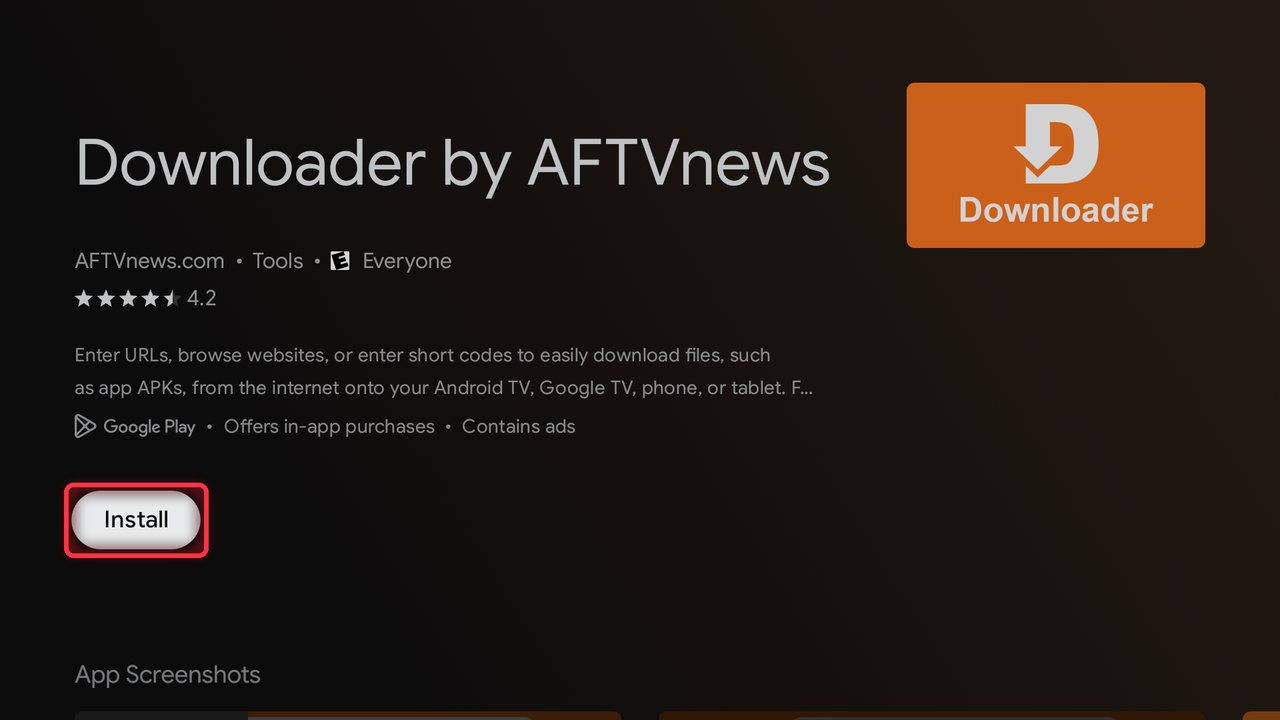
    Install it

    Select Install.

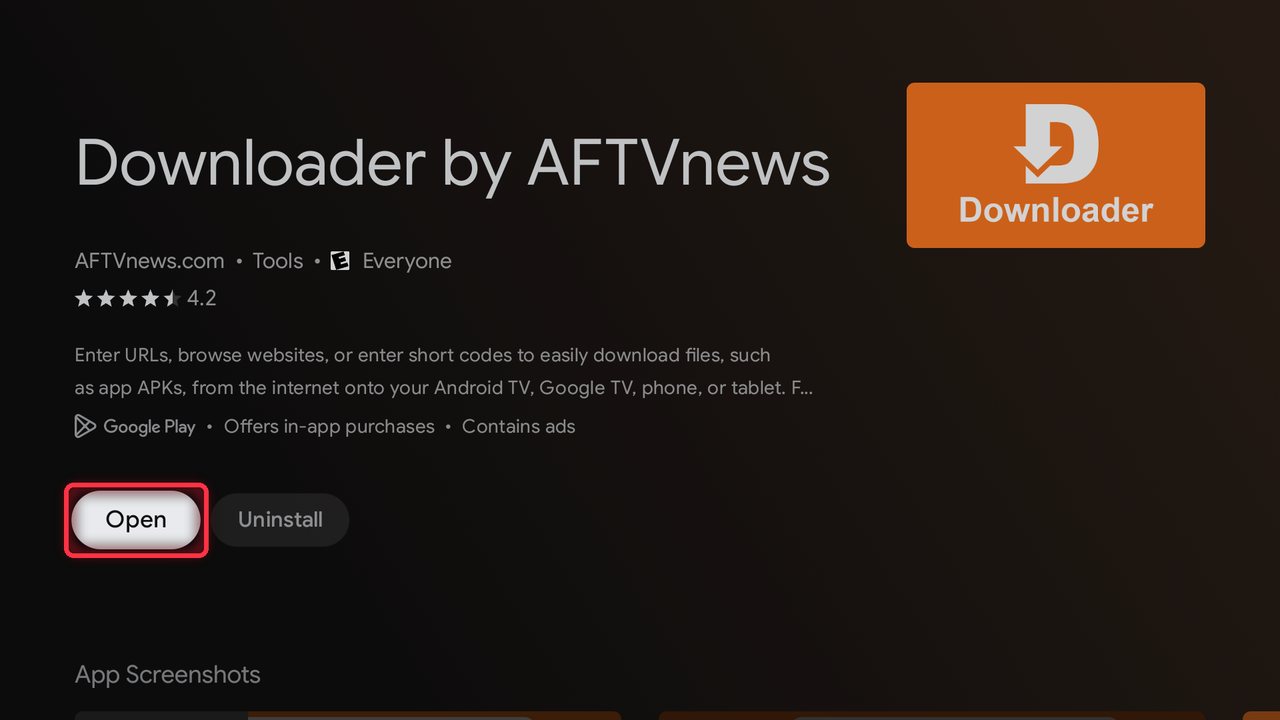
  8. Step 8: Open Downloader
    08

    Open Downloader

    Select Open and close any pop-ups.

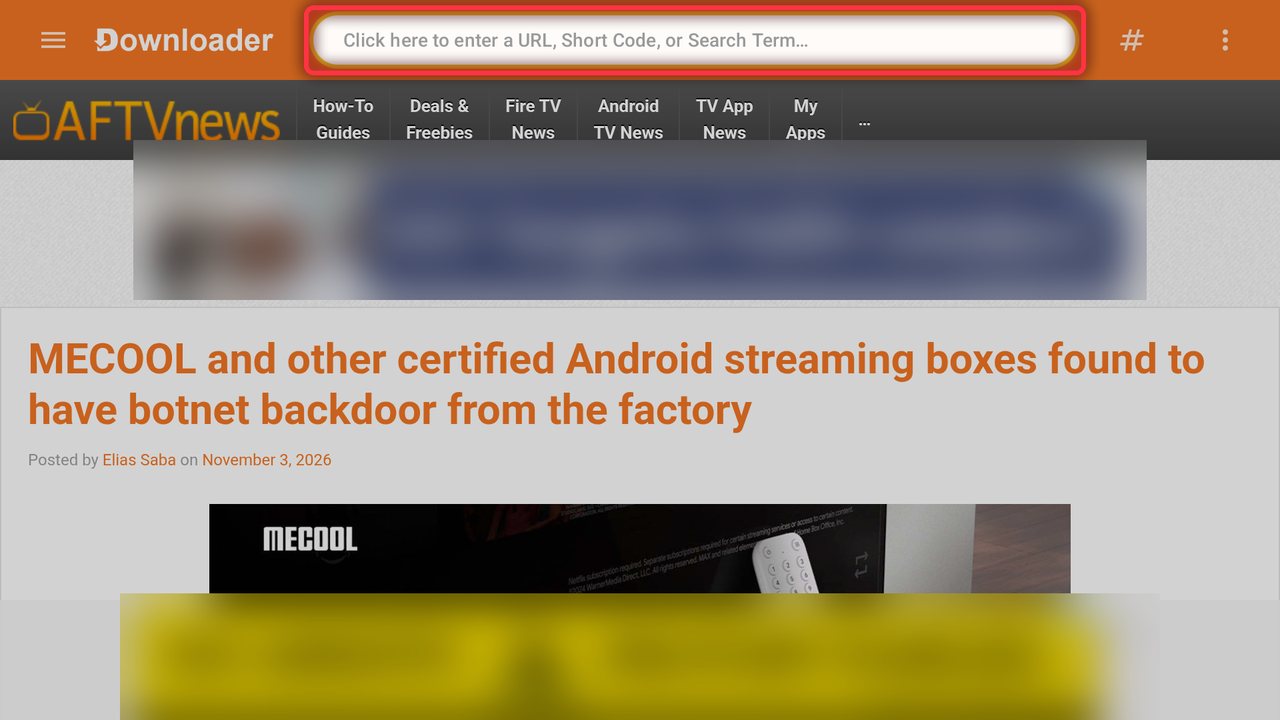
  9. Step 9: Go to the address bar
    09

    Go to the address bar

    Downloader opens on a news page (ignore the ads). Hold UP, press RIGHT once so the white bar is outlined, then press OK.
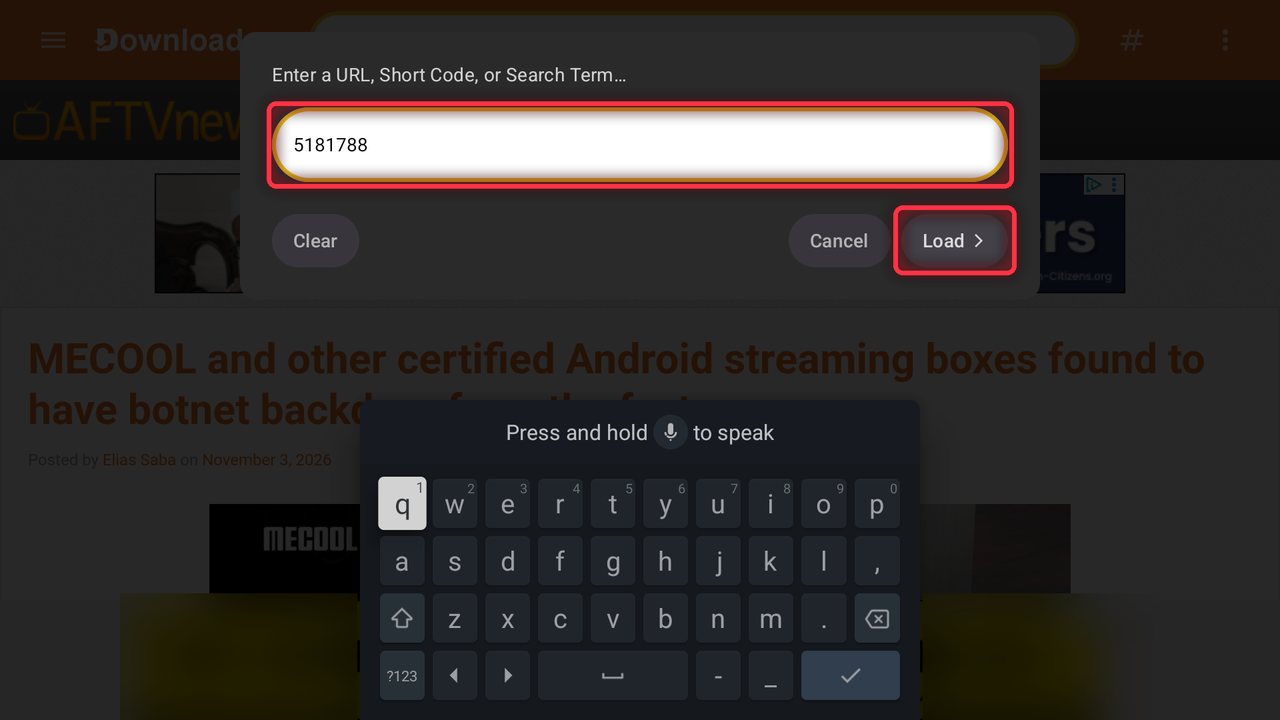
  10. Step 10: Enter the ProTV code
    10

    Enter the ProTV code

    Type 5181788 (numbers are under ?123) and select Load.
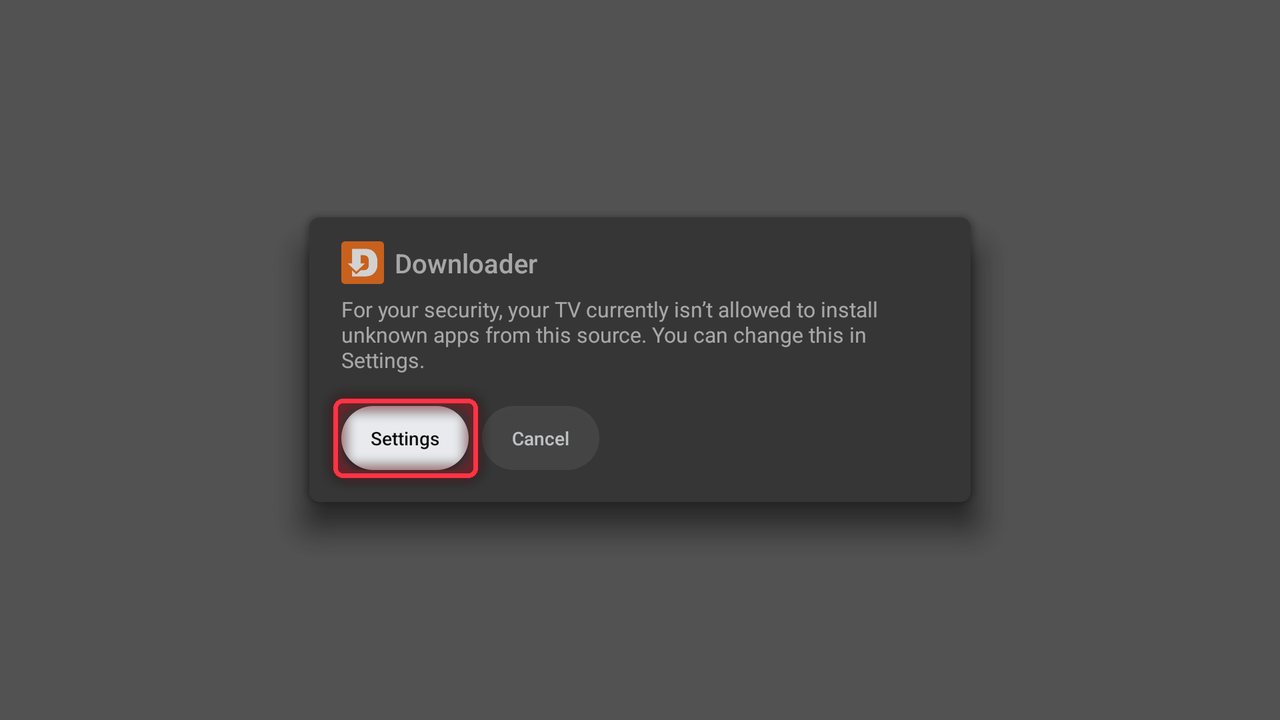
  11. Step 11: Allow Downloader to install apps
    11

    Allow Downloader to install apps

    Let it download and don't press anything (the highlighted button is Cancel). When this pops up, select Settings.
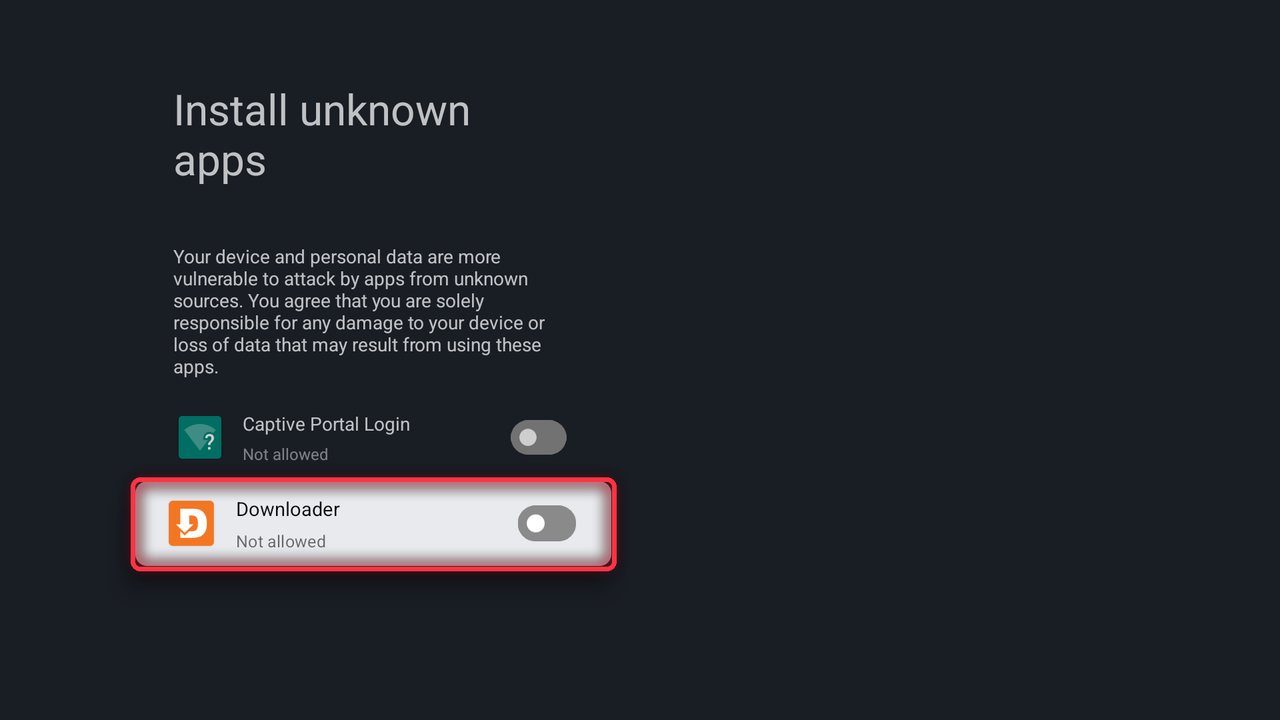
  12. Step 12: Turn on Downloader
    12

    Turn on Downloader

    Turn on Downloader.

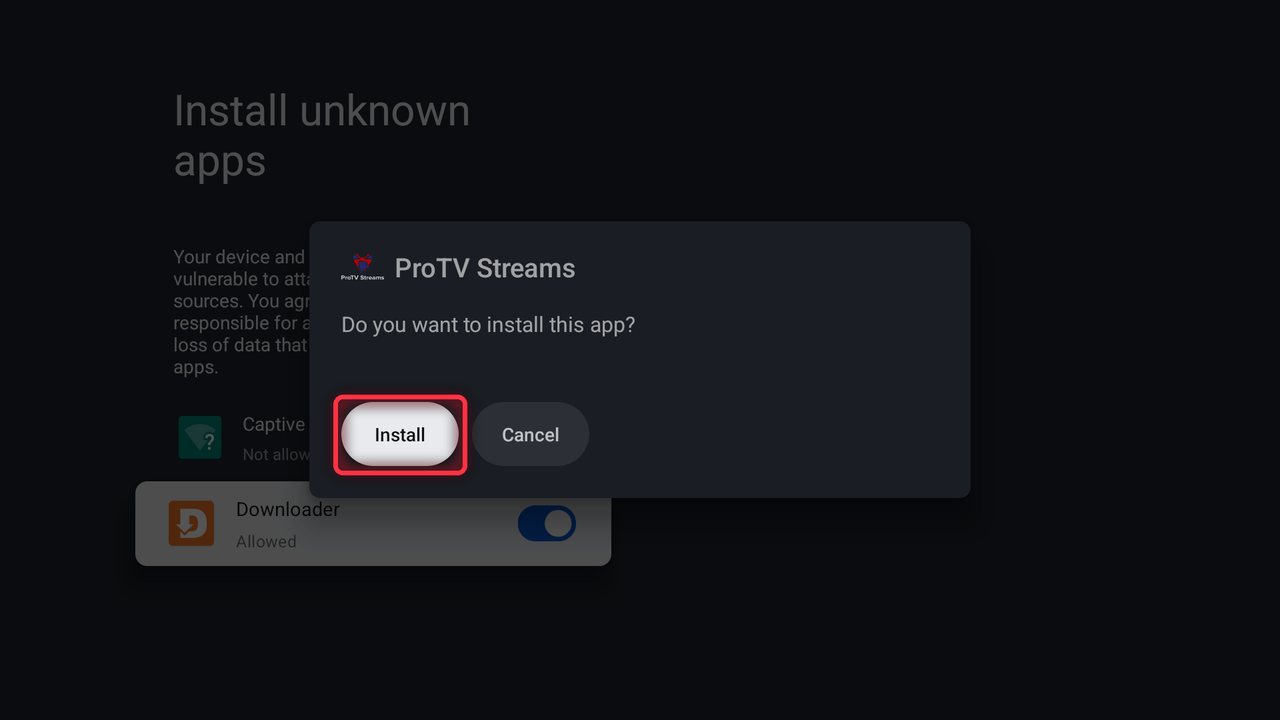
  13. Step 13: Install ProTV
    13

    Install ProTV

    Select Install.

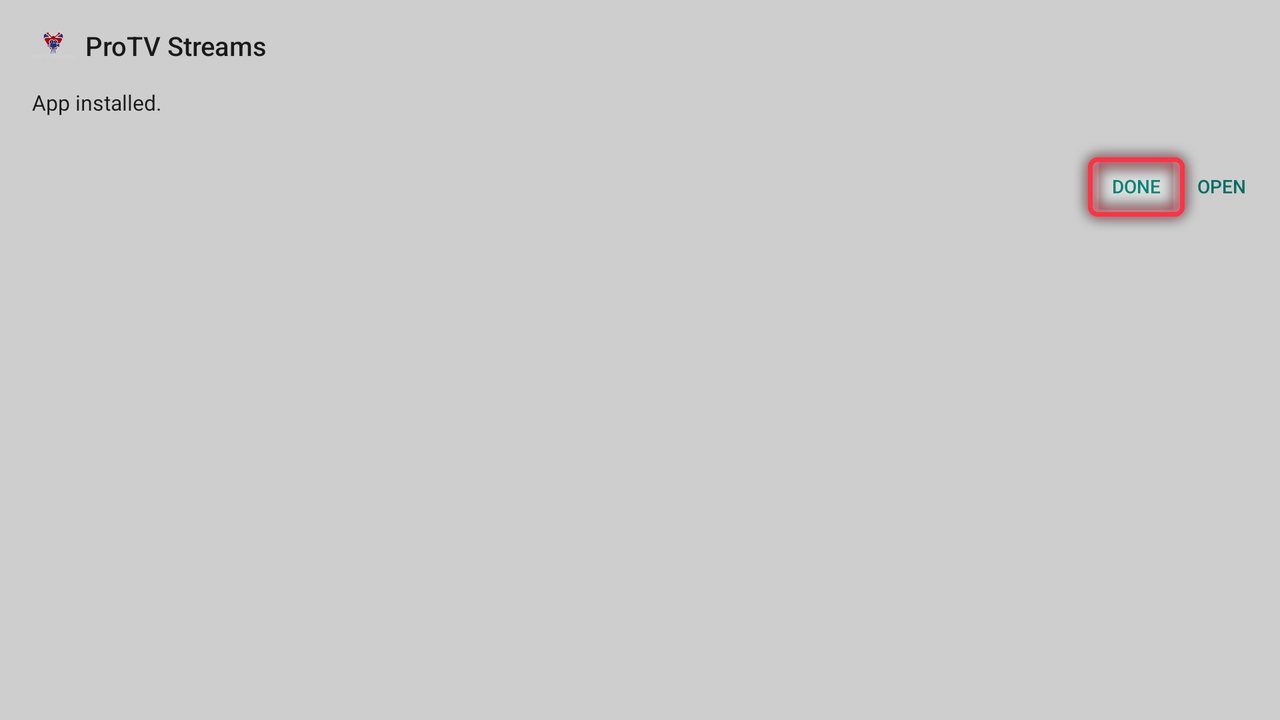
  14. Step 14: Select Done
    14

    Select Done

    Select DONE.

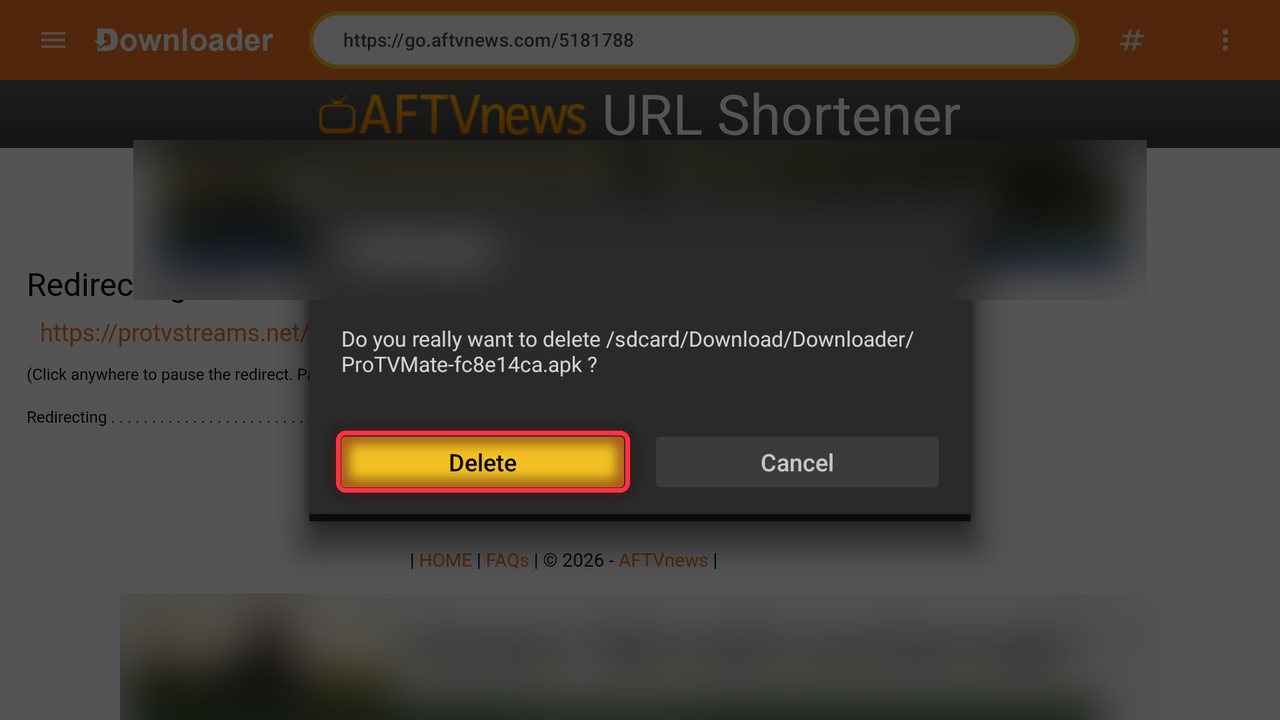
  15. Step 15: Delete the installer file
    15

    Delete the installer file

    Select Delete, then Delete again. This only frees up space.
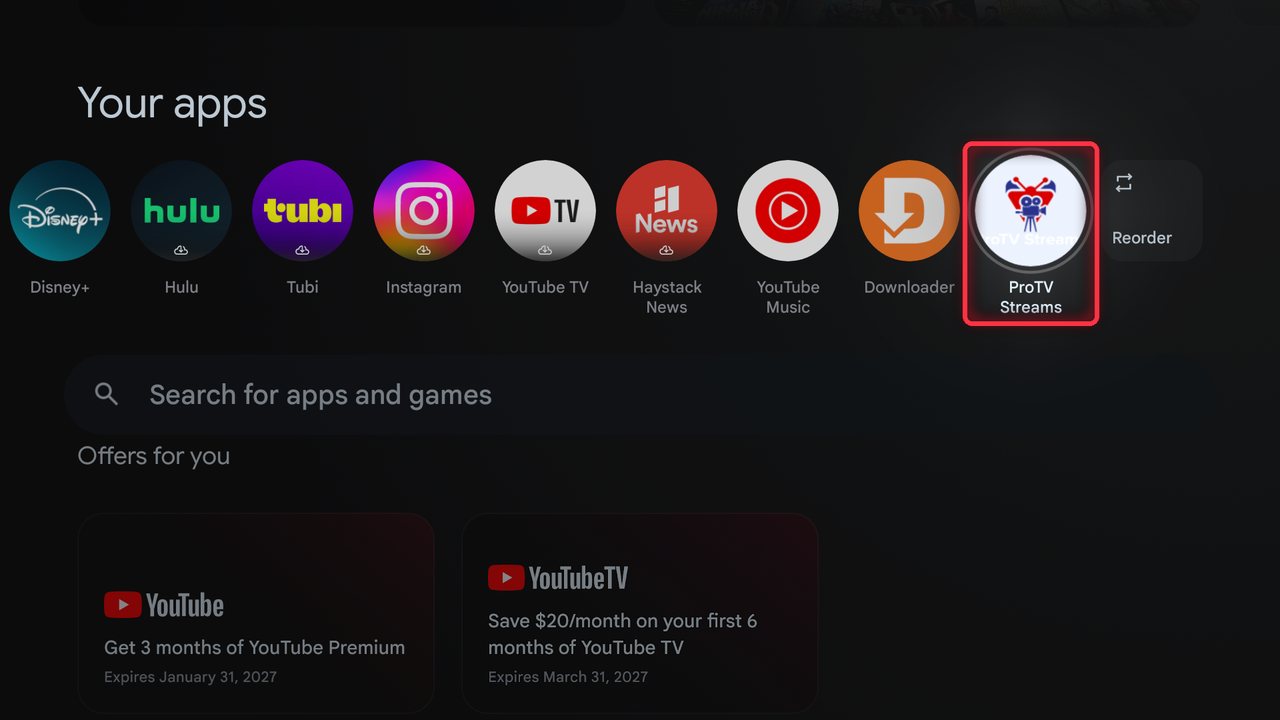
  16. Step 16: Find ProTV
    16

    Find ProTV

    Press Home, go down to Your apps and press RIGHT to ProTV Streams (right after Downloader).
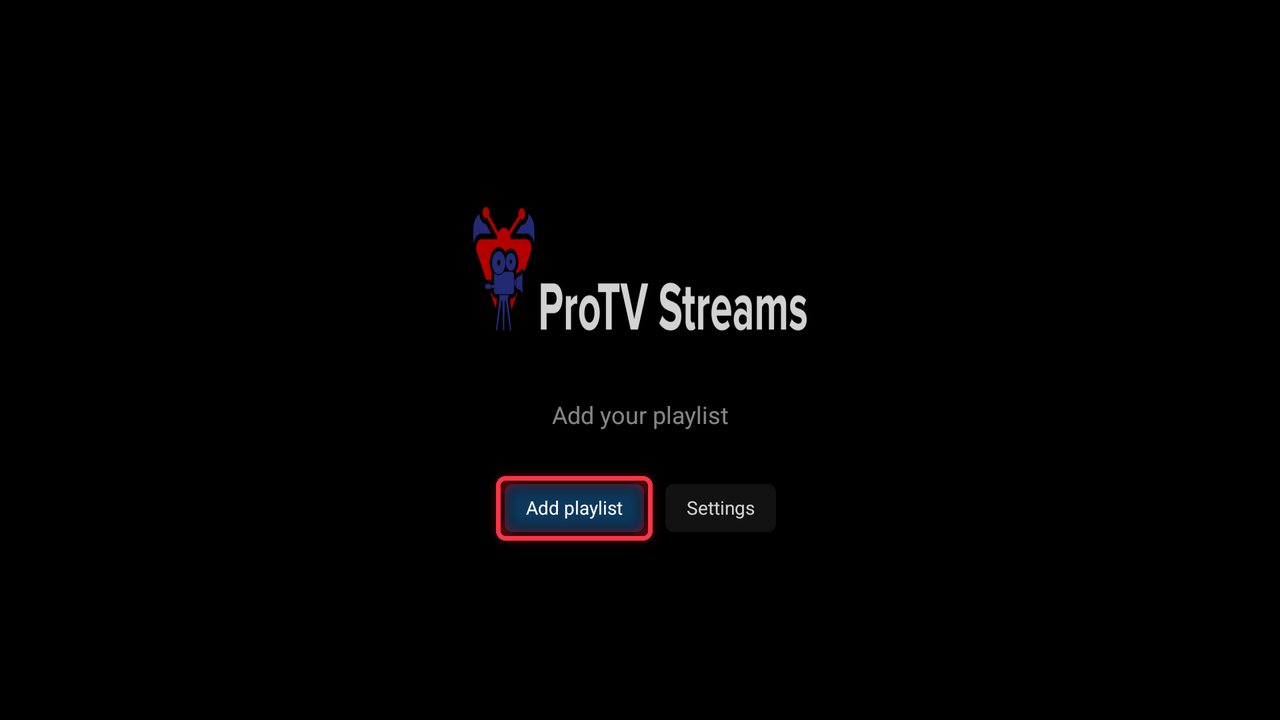
  17. Step 17: Open ProTV and add your playlist
    17

    Open ProTV and add your playlist

    Open ProTV Streams and select Add playlist.
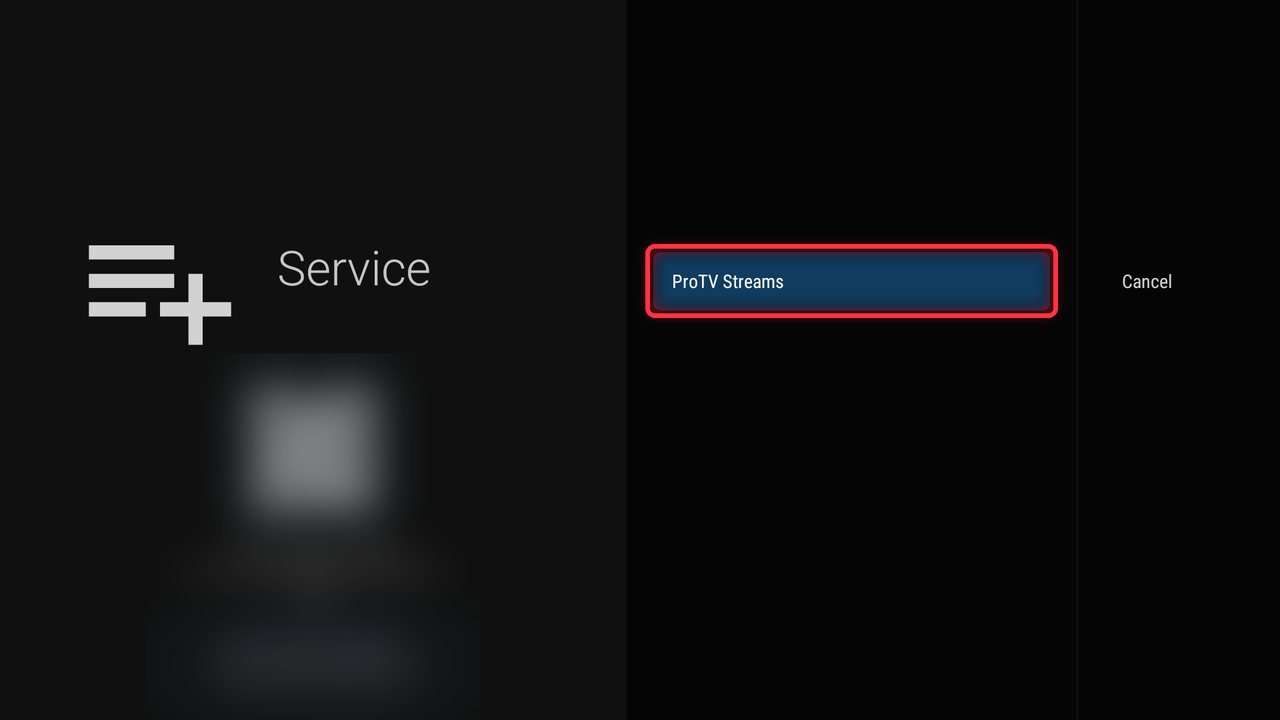
  18. Step 18: Choose ProTV Streams
    18

    Choose ProTV Streams

    Select ProTV Streams.

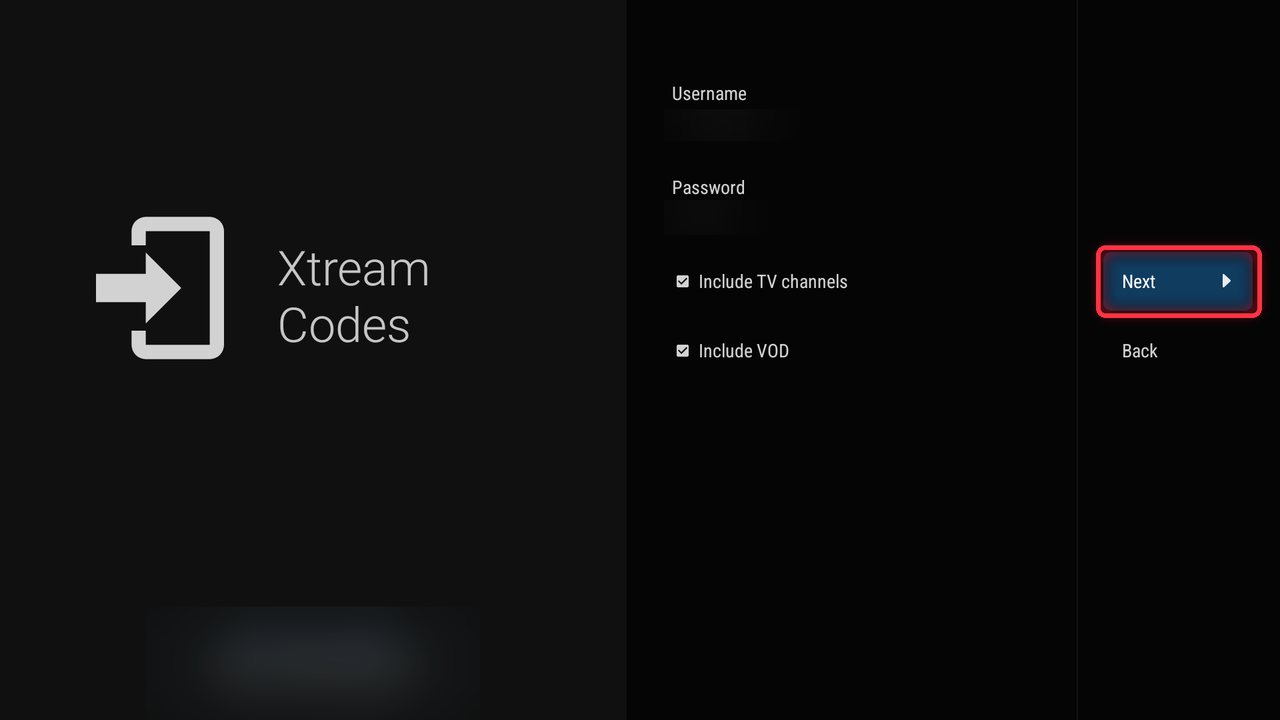
  19. Step 19: Sign in
    19

    Sign in

    Enter the username and password we sent you (capitals matter). Leave both boxes ticked and select Next on the right.
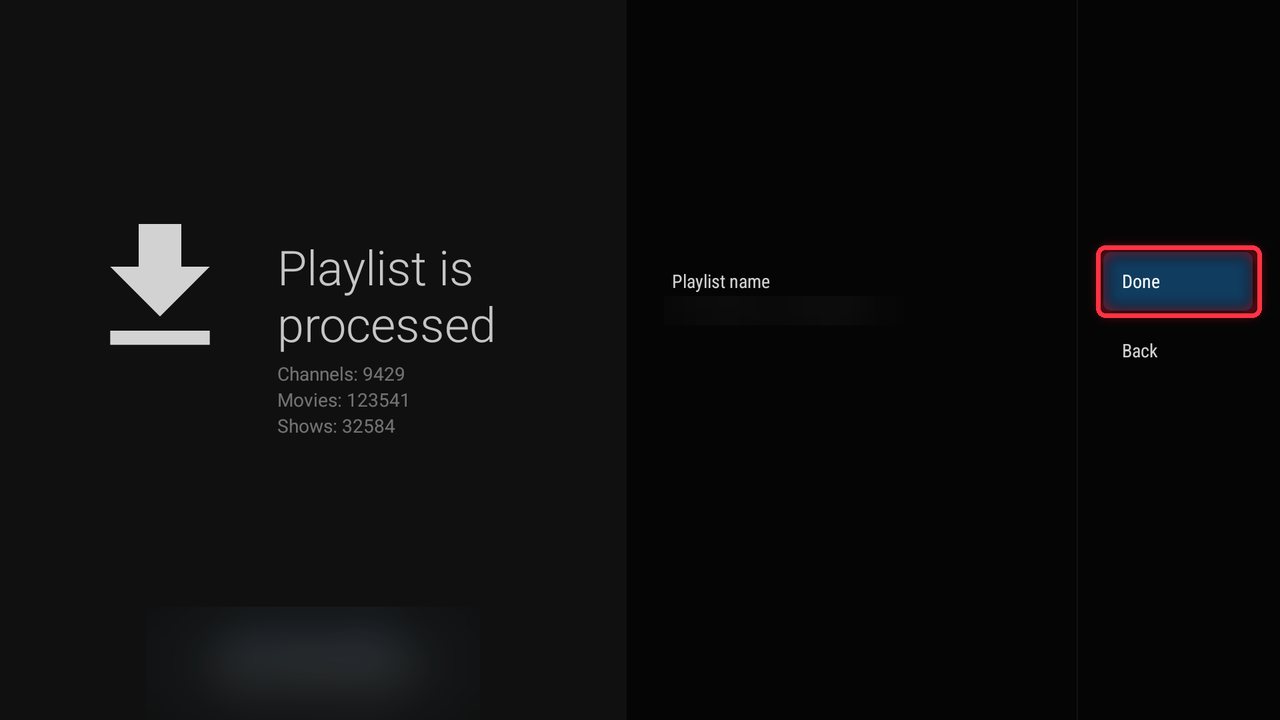
  20. Step 20: Wait for your channels to load
    20

    Wait for your channels to load

    Give it about a minute, then select Done. Wait for the TV guide to open.
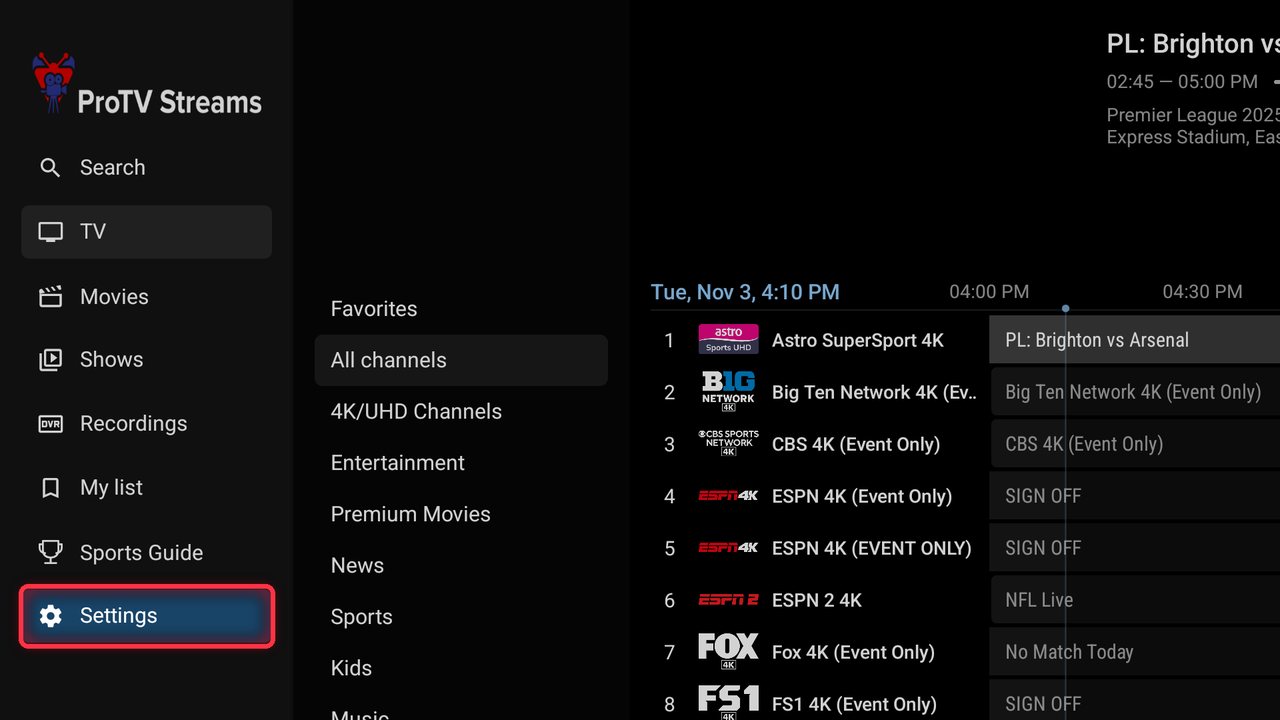
  21. Step 21: Open the app's Settings
    21

    Open the app's Settings

    Press LEFT twice to open the menu and select Settings at the bottom.
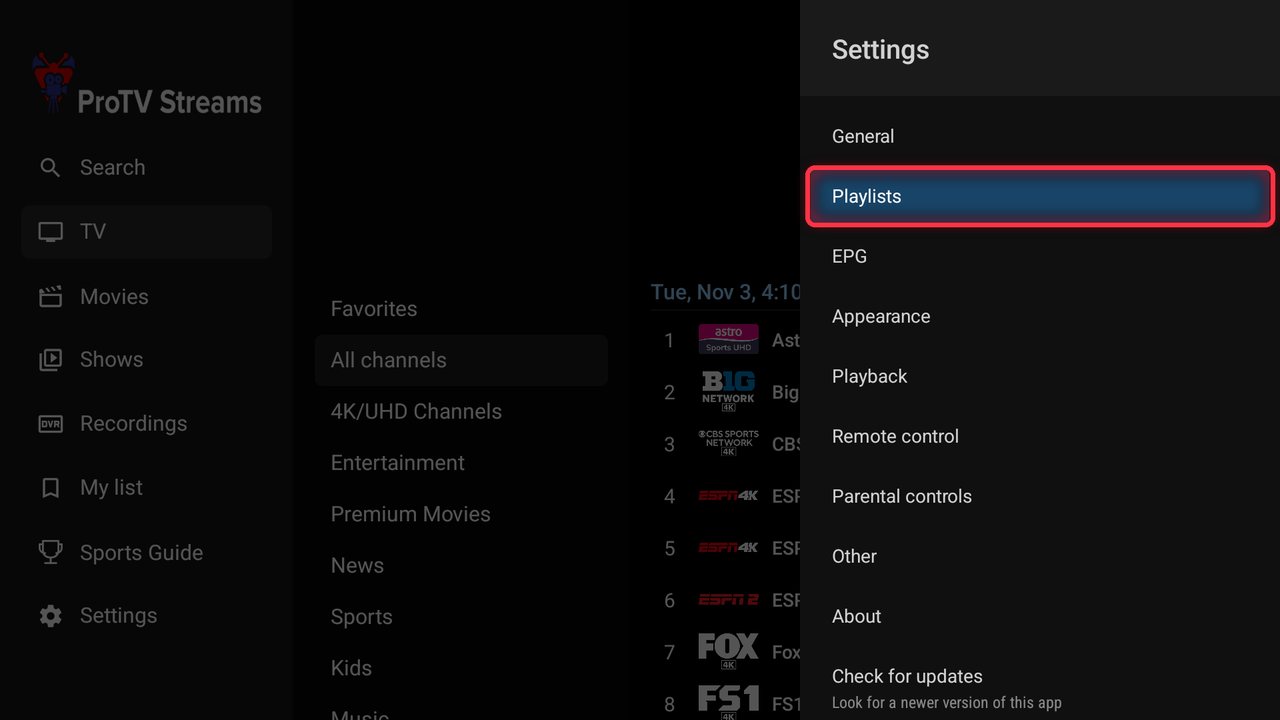
  22. Step 22: Open Playlists
    22

    Open Playlists

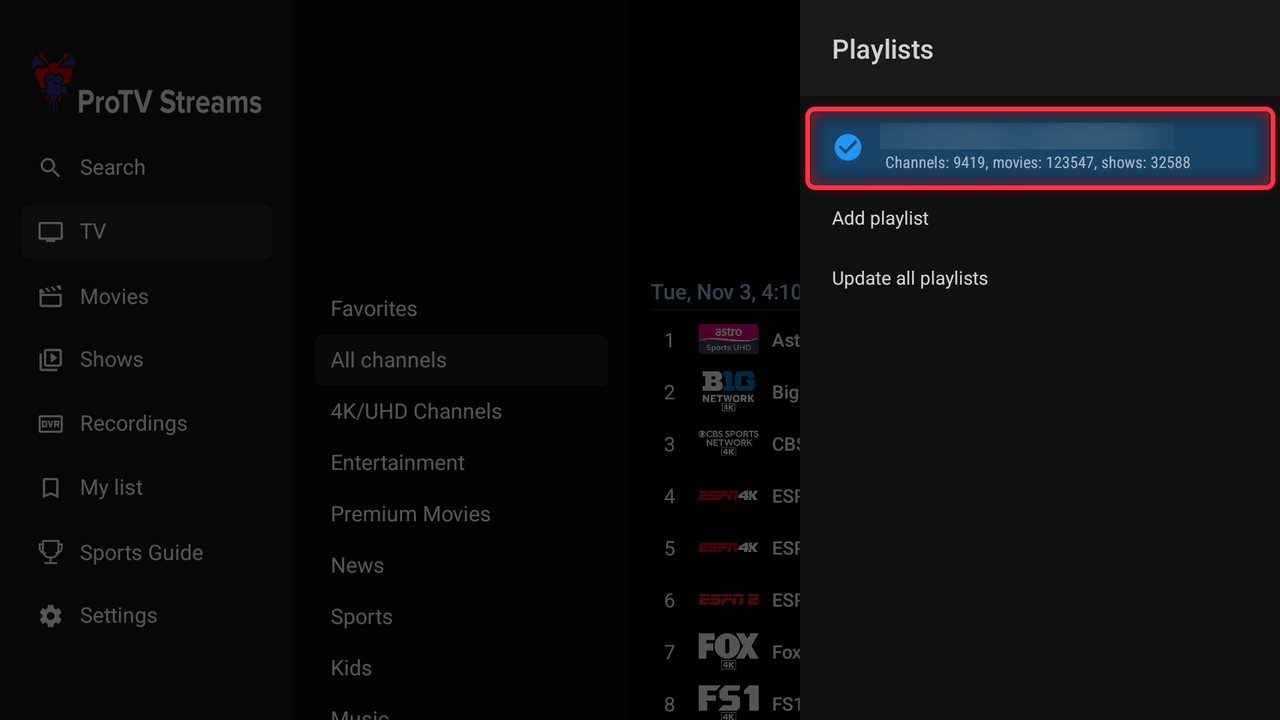
    Select Playlists.

  23. Step 23: Open your playlist
    23

    Open your playlist

    Select your ProTV Streams playlist.

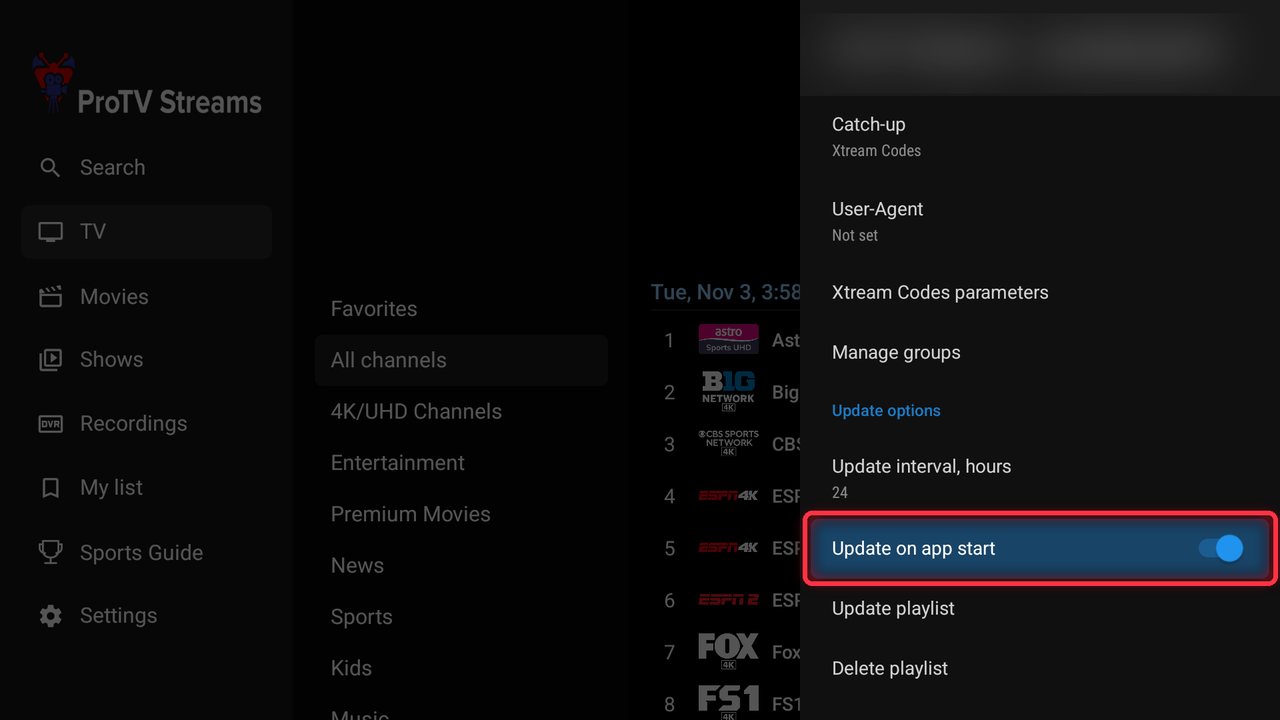
  24. Step 24: Turn on "Update on app start"
    24

    Turn on "Update on app start"

    Scroll down and turn on Update on app start.
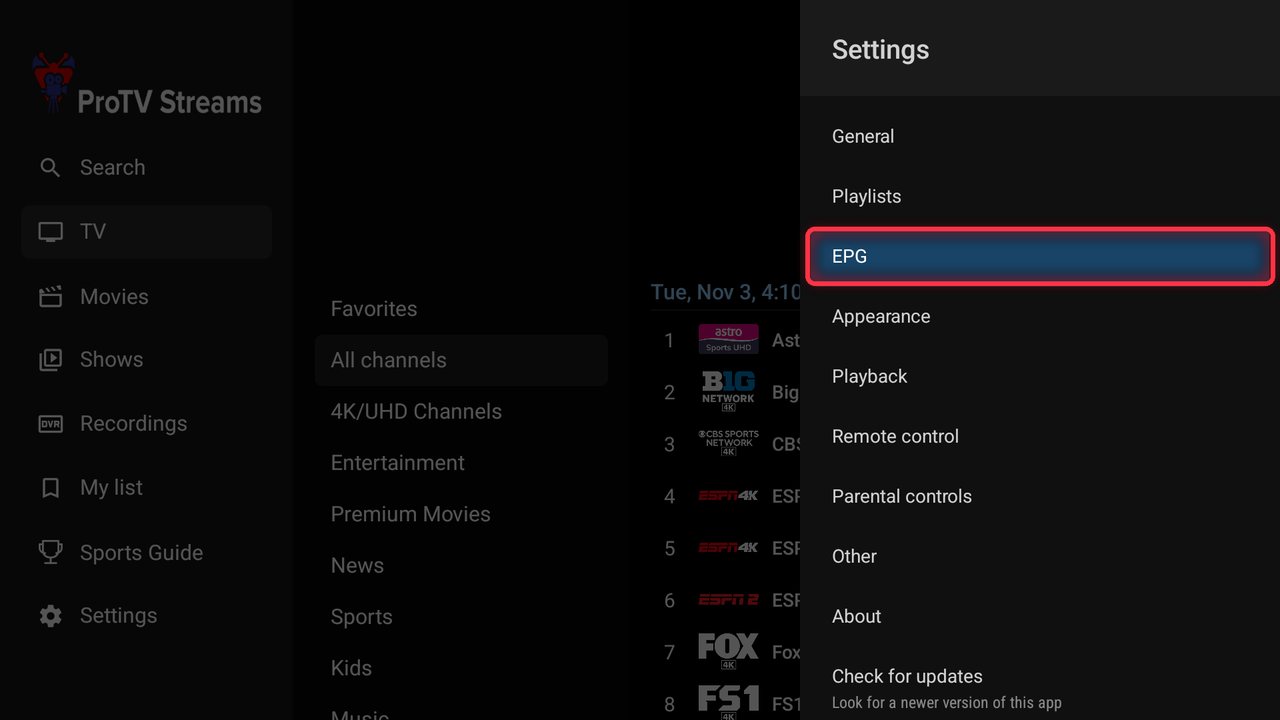
  25. Step 25: Open EPG (the TV guide settings)
    25

    Open EPG (the TV guide settings)

    Press BACK twice and select EPG.

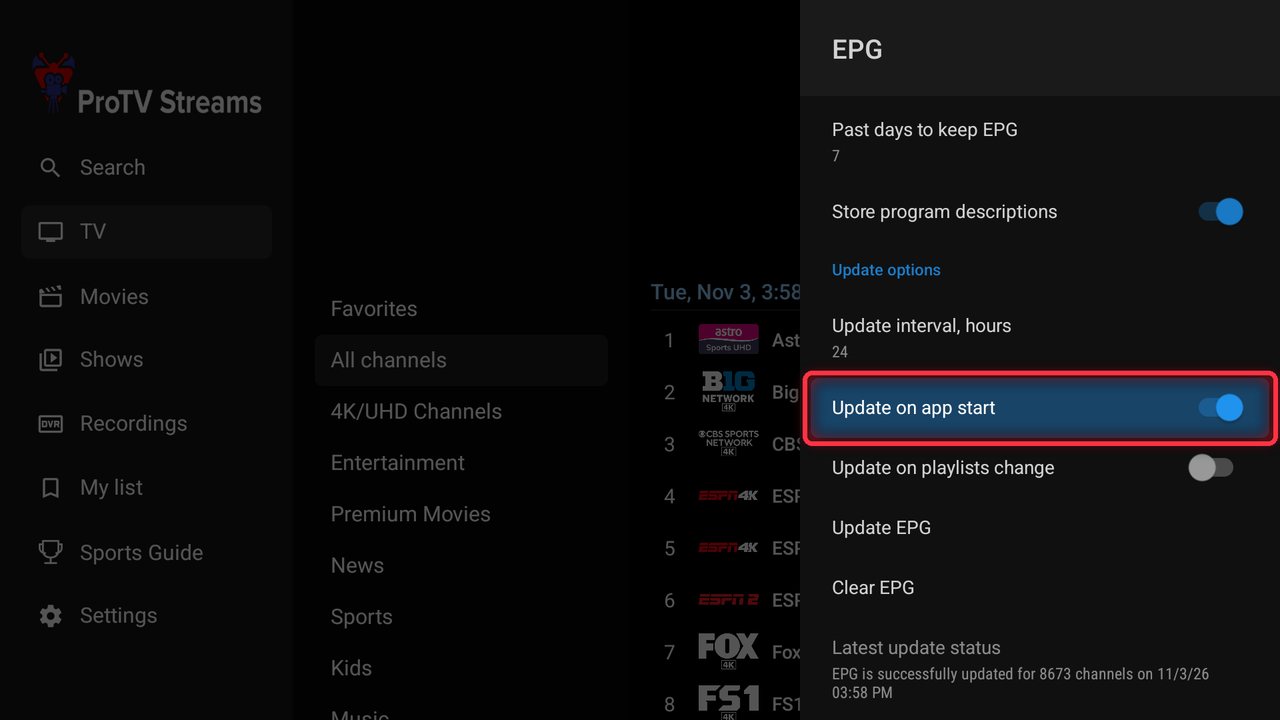
  26. Step 26: Turn on "Update on app start" here too
    26

    Turn on "Update on app start" here too

    Turn on Update on app start here too.
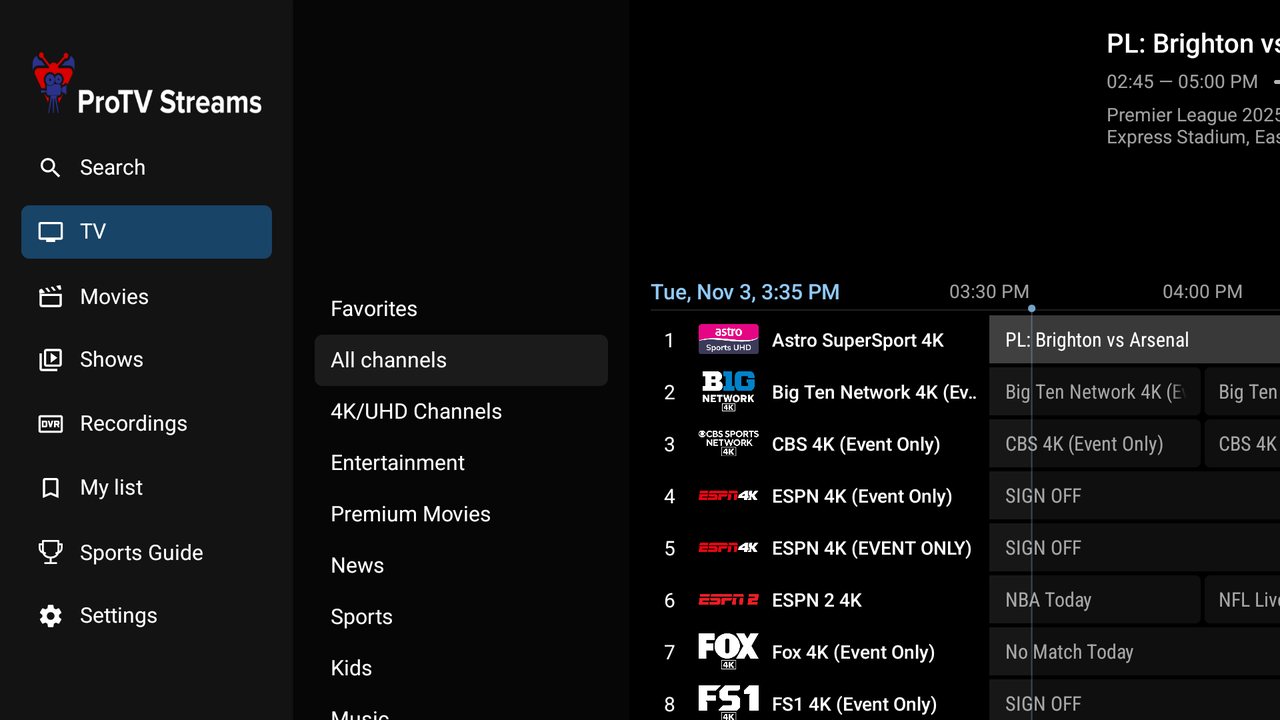
  27. Step 27: You're all set
    27

    You're all set

    Press BACK twice to close Settings. To watch, pick a channel and press OK. Press LEFT twice any time for Movies, Shows and the Sports Guide.

STUCK?

Tell us which step number you're on and we'll walk you through it.

WhatsApp 402-973-2239[email protected]